Posts tagged with: howto
← Back to all tagsI ran into this odd issue when trying to add two Yubico security keys to my Google account on a Windows machine. The process on myaccount.google.com keeps prompting to “Enroll Windows Hello” in order to create passkeys.
If you want to skip the preamble, jump directly to the steps.
Whenever I clicked the “Create a passkey” button in the middle of that page, it opened the special link ms-settings:signinoptions, which opens the Windows OS settings page for sign-in options. My best guess is that Google wants the machine itself to use one of those options, but I prefer not to at this point.

I did some clicking around between the security page, two factor authentication page, and the passkeys page, both with the security key plugged in and without. I don’t remember the exact steps, but I did eventually get to the “Use another device” prompt and was able to set up the passkey on the security key. At that point, I had my first security key and my phone listed as passkeys. I wanted to add my second security key (backups!), but no matter how I tried, I could not get back to that “Use another device” prompt.
I turned to the human internet and found some threads on Reddit. This one in particular had a comment suggesting signing up for Google’s Advanced Protection Program. It is free, so it was possible, but I persisted on mostly in spite because this shouldn’t be so hard!
Fast forward through several more clicking around adventures and here is how I got it to work:
- Visit https://myaccount.google.com/advanced-protection/onboarding and sign in
- Scroll down and expand the section “Passkeys and security keys”
- Select “Create passkey”
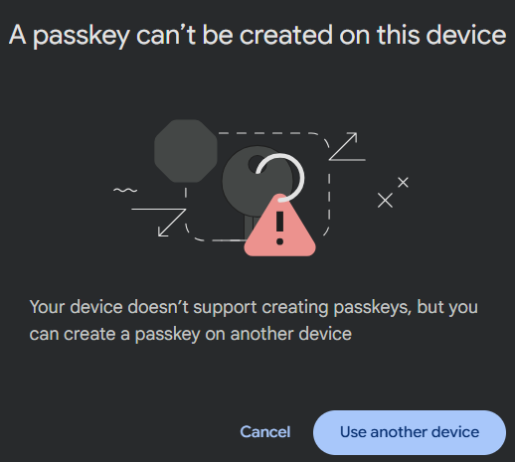
- In the popover, select “Use another device” (screenshot below)
- Another popover with a QR code instructs to scan with a phone or tablet. Ignore that prompt and click the “Back” button at the lower left of the popover
- The QR popover will go away and you should see the prompt “Choose where to save your passkey for google.com”. Select “Use an external security key” (screenshot below)
- From that point, follow the OS prompts to enter a PIN and touch the security key
- Done! The security key now shows up in the list of passkeys